Showing posts with label Tech Tip. Show all posts

Friday, October 3, 2014

Google Apps for Education (GAFE) Reading Apps

I learned about various apps/extensions during the Google Apps for Education (GAFE) session at Ed Camp Baltimore on September 27, 2014.  Today's post will be about two of the reading apps that I learned about.  These are for the Chrome web browser.  If you don't use Chrome yet, I would suggest a switch in your default Internet browser...because it is amazing!

 Readability 

This is an extension that you can find by going to the Google Chrome Web Store.  The icon is a red arm chair.  

This extension is very useful if you have your students reading articles from websites.  The purpose of the extension is to clean up the appearance of the website.  Often times, news sites have excessive links all around the article.  The look is very busy and it can be difficult to focus on the text you actually want to read.  Once you have found the article you want to read, you just click the readability button and it gets cleaned up for you. 

Let me show you an example.  Here is the original article that I wanted to read from BBC News.  


 I c
licked the Readability icon at the top of my web browser.


And in seconds my article looked like this:
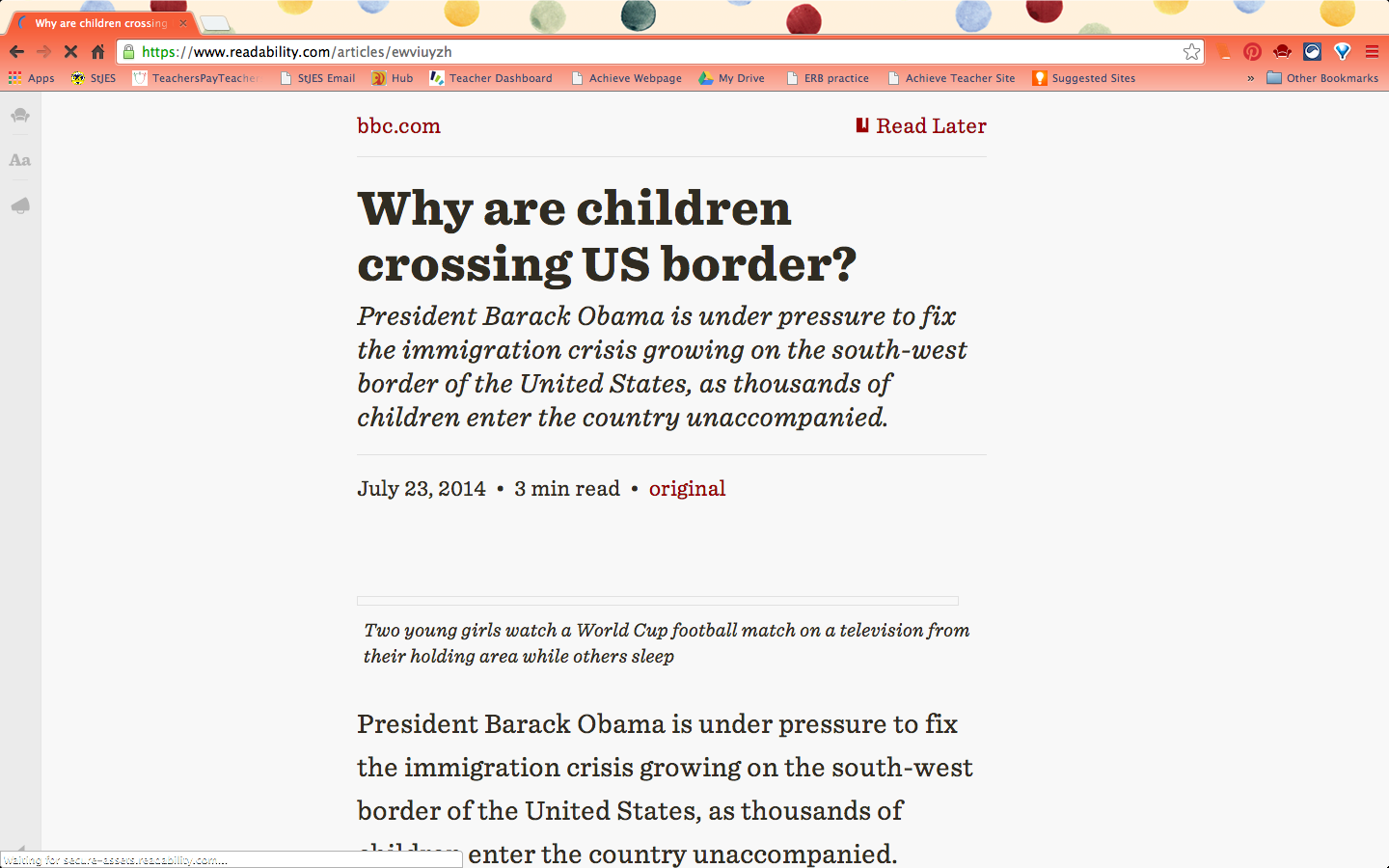


Your article will still have the pictures that are specific to it, just not all the extra stuff from the website.  It is much easier to read, but there are other features too.

Once your article is cleaned up, (I selected "read now"), you should have a row of buttons on the left hand side of the page.
The first button is the Readability logo.  This is for logging in to the Readability site, which doesn't seem necessary to me.
The second button looks like this- Aa - and it gives you access to some features that will personalize your reading experience.  You an change the color, font, size of text, and size of margins.
The third button (a megaphone) also asks you to log in to the app.
The fourth button is a little arrow and it allows you to send this text to your kindle, email, Twitter, or Facebook or you can print it from here.

While I have not yet used this link with the students, I think it will be very useful.  

TLDR

TLDR stands for Too Long Didn't Read and it is another Chrome extension.  This one does not seem to work with an article that has already gone through Readability, so it will have to be done on the original website.  The purpose is to create simplified texts for English Language Learners or other students who could benefit from a summary or a shortened version.  I think it would be especially helpful when trying to do research for a project.  By reading a summary, you can decide if that article will fit your needs.  If you determine that it might be a good one, then you can go on to read the original text.  I can't speak to how well it shortens the text, but it does provide a short, medium, and long version of the article.  

The icon for TLDR is those four letters in blue and green lowercase letters.  Once you are on the article that you want to use it with, click the button and a dialogue box comes up in the middle of your screen.  It then lets you click what you want to read- summary, short, medium, long, or original.  At the bottom, there is a "find more like this" button, but it seems to me that that button is referring to more apps/extensions, not more articles.  My primary purpose would be to use the summary feature to get an idea of the article, and then to read the original to see if you can use it.  I do not believe it works on PDFs, just on websites.

The question will be, can students handle the power of an extension like this?  Perhaps you want your students to read an entire article, but they have been armed with this extension.  They might be able to "get away with" only reading some of the text.  For now, I am not going to introduce this extension, but rather, I will use it myself to provide summaries.  One example is for a mini-research project where I will be providing the links.  I can now include a short summary with each corresponding link, so the students can pick the best articles to fit their needs.

I am excited for what Google Apps and Extensions can do in our classrooms.  These are just two examples of many useful resources.  This is just scratching the surface. 

What are your favorite GAFE that are related to reading?


Tuesday, August 6, 2013

Best Google Keywords

I just found a very exciting blog post.  I have been searching some Google resources and this post was linked to on one of the pages: 12 Best Google Keywords for Finding Classroom Resources.  I am a self proclaimed "bad searcher" on the Internet.  In fact, I often make my husband create my searches because I think I will get better results that way.  I think this archived blog post could change all that.  Now, I haven't tried any of these words yet, but I am very excited to!  I think that they will help make searching much more successful.  Here is a sneak peak of the keywords, but make sure to read the full blog post by clicking the link above!

Biography

                              Discussion Questions

                                                      Practice Exercises 

Interactive

                                                 Internet Scavenger Hunt

                                     Lesson Plans

Quiz

                                                     Reader's Theater(e)

Timeline

                                    Video

Worksheet or Handout

                                                         Webquest


Thursday, July 25, 2013

Tune into Technology Linky


I have one quick tip for the Tune into Technology Linky this week.  The theme is organizing technology.  A teacher friend of mine gave me this tip two years ago and it has revolutionized my file organization.  Here it is...numbers!  Sounds simple, right?  Here is a quick look of what I mean-


This is a picture of my seventh grade literature file.  I number the books in the order that I teach them.  That may not seem that revolutionary, but imagine inside one of the folders.  That's right.  It is all in order.  From activity 01 all the way to the end of the unit.   Here's a look-


This makes it so easy when coming back to my files the next school year.  I can just look through them in the order that I did them.  WOW!  Notice that I have three files with the number 03.  That is because this was all one lesson.  Sometimes I also make documents in advance and I don't know exactly where they will fall.  In this case I just assign a number that I think will be valid and change it if necessary.  

Thanks for reading.  I hope that this was a helpful organizational tip for your technology! 

Sunday, July 21, 2013

The Wonder of Google Docs

I am very new to Google Docs.  In fact, my recent preference for keeping my files has been dropbox.  I love dropbox.  However, I am excited to start using Google Docs to ease the transition to chromebooks.  Our school is doing a chromebook pilot this year.  The seventh and eighth graders will have a personal chromebook that they take to all their classes and home with them.  Like any techy teacher, I am really looking forward to this resource.  Last year the upper schoolers all shared a computer lab.  I imagine this is pretty typical, but it did make it hard to get computer based projects and papers completed due to scheduling.

There are multiple perks to GoogleDocs (which is now formally called Google Drive).  One obvious perk is that it automatically saves.  This is amazing.  You can even revert back to previous saves, in case you made changes that you no longer want.  Of course, there is also a traditional undo button.
Here is what a new document looks like:


I also like that you can easily search for your documents.  Rename your document by clicking the "untitled document" button.  The idea is that you give it a name that you clearly associate with the document, even if it has five words in it.  Then you can search those words and find the document in a snap.  Now, I'm not sure if I can totally eliminate the use of folders.  I love folders and organization, so even though I currently haven't organized my Google Drive, I think it's coming soon.  

A very powerful aspect of Google Drive is collaboration!  Multiple students (or teachers) can be working on the same document simultaneously.  In fact, if multiple people are working on the same document, you can see where the other person is typing.  I can see this working best on a group project that is based in Slides (Google Drive's form of Powerpoint).  Each student can be working on their own slides, but they don't have to wait for one person to finish before they start.  This means they will be more productive during class (and at home- as long as they have an internet connection).  

Since all of our seventh and eighth graders will have chromebooks, we are also going to be using the Chromebook Management Console.  This isn't exactly Google Drive, but a tool for chromebooks that will help students organize their documents...and so much more.  Although I haven't started using this yet and don't know the full extent of all the pieces, it has great potential for classroom use.  It can do things like push-out apps and websites to all student computers.  This will make it easy for everyone to be on the same web page without needing to type in long web addresses.  I am planning on using web based grammar drills at the beginning of class and this will allow the class to seamlessly get started.  There is also the ability for the teacher to see what is on every students' computer and what tabs they have open.  Cha-ching!  Can you say classroom management.  This is definitely one area that I was concerned about, and although I haven't tried it yet, I think this will save us a lot of trouble.  At my school, I think that the students knowing that we will be watching the links they are on will be enough for them to stay on-task.  However, if they do decide to go to an unapproved website during class time, the teacher can CLOSE the tab.  That's right...I've got the power. I am so excited to have this tool, even though I hope to never need to use it.  Also, as I mentioned earlier, this console will provide a folder for each of the students' teachers.  That means that I can put google doc worksheets in their English folder.  No more excessive printing.  No more, "I can't find my worksheet, can I have another one."  Now, I know not all of my worksheets will be on google docs, there are some reproducibles that  I didn't create that I still need to copy.  But, I am very excited about the prospect of being (more) paper-free.  I can also grade the papers right from the management console and still not need to print.  I have yet to figure out how I will motivate myself to grade when I don't have a stack of papers three inches high.  I think I will need to have a system of grading that I stick very closely to in order to not get too behind.  For example, grade all seventh grade Wordly Wise on Wednesday nights, etc.  I have always wanted to have a system like this that I follow, and now it should be easier because I can access the assignments from anywhere I have an internet connection.  Can you tell I'm excited.  I am sure there are other features of the management console that I don't know about yet, but this is what I gained from the overview.  

Here are some links for further reading:

Google Drive Tutorial from Lauren @The Sweetest Thing.  She goes into much more depth than I have.  If you want a step-by-step for Google Drive, this post is for you.

30 Ways to Use Chromebooks in the Classroom from Educational Technology and Mobile Learning.  This post goes into reasons that Chromebooks are the way to go if you are looking at 1 to 1 solutions.

Chromebook Management Console a brief look.


Tuesday, July 16, 2013

Tech Tip- how to link in a blog comment

I am such a blog newbie, despite the fact that I have technically been blogging since November.  Recently I joined BlogLovin' and I am LOVIN' it.  So far I have transferred all of the blogs I follow to BlogLovin' (now that number is a whopping 86), downloaded the app for my iPhone and iPad, and slowly I have started to see my number of followers crawl up.  Thank you to the nine people following me.  Since I have been reading a lot of blog posts, I have been so inspired.  Occasionally, I want to learn more and that usually means that I want to comment on a post.  Thus came the motivation for this post. 

Why isn't my link showing up as a clickable link? 
 
 When commenting on others' posts I wanted to include my blog name, thus giving them easy access to check out my blog.  But, every time I copied my blog's web address into the comment it didn't show as a URL.  So my easy access...not so easy.  In order to see my blog, the reader of the comments would have to be motivated enough to copy and paste my web address into their browser.  I did a little research (i.e. I searched google for the answer) and I am sure it will not surprise you that there was an answer to my problem.  I still feel that there may be an easier answer, but I am happy with the solution.  Now when I include my website in the comment it actually shows up as a link.  

I found my answer at The Bexter Review (at this post), so you can read the original post if you would like.  

Tutorial:

Copy this code into your comment section, but change the blue portion to the link you want and change the pink portion to the text that you want displayed.  It's that easy!  

<a href="http://www.bloglovin.com/blog/7543229/dava-smith-english-teacher">Follow Dava Smith English Teacher on BlogLovin’</a>

Thanks for reading my Tech Tip.  Feel free to let me know if I there is an easier way.  I am always eager to learn new things.